
- This year’s test ranks Windows desktop browsers by RAM efficiency using an automated, repeatable lab setup on a newer HP Pro Mini 400 G9 (i5‑13500T, 16 GB RAM).
- Methodology measures real RAM (RSS), virtual memory, swap usage, process count, and stability as tab counts jump from 1 to 100.
- A new composite “Gadgetisimo Memory Score” weights stability, swap usage, RAM used, and architecture to reflect real‑world responsiveness.
In last year’s test, where I picked the best browsers for 2025 on Windows Desktop, the main focus was on raw performance and on the features each browser brings to the table. In 2026, the conclusion about the best browser on Windows Desktop will come after a series of tests where we’ll put the latest versions of the most popular Windows Desktop browsers through their paces.
The browser, more than ever, has become the central point of our online activity. Its complexity has grown to the point where we can now see it as a platform in itself, not just an app. But this complexity normally comes with high resource usage. And on a PC, RAM is the main pillar that takes the brunt of resource consumption when it comes to browser functionality.
So, in this test we’ll measure, using a custom-defined methodology, which browser is the most RAM‑friendly for our PC. This is especially important now, when we’re in the middle of a memory crisis.
What Changed Compared to Last Year’s Tests
Just like in the previous year, we’ll use a dedicated lab for these tests, so we can keep the conditions as equal as possible when testing the browsers. If last year I used a Lenovo M720q mini PC with an older‑generation i3‑8100T CPU, 8 GB RAM and a 256 GB SSD, running Windows 11, last year’s tests were meant to show how browsers behave on a somewhat mediocre system, with the idea that if they behave well on old hardware, then they’ll behave excellently on new hardware.
This year I upgraded the testing lab and used a newer‑generation mini PC, an HP Pro Mini 400 G9 with an i5‑13500T processor, 16 GB RAM and a 512 GB SSD, running Windows Pro as the operating system. So still a mini PC, because Business‑class mini PCs are the best devices for a Home Lab without blowing up the budget.
RAM Testing Methodology
While last year’s performance tests used a methodology that required a lot of manual work, now, because the tests are much more complex, I built an automation that ran the tests and recorded the metrics I was tracking.
The automation was built with two Python scripts.
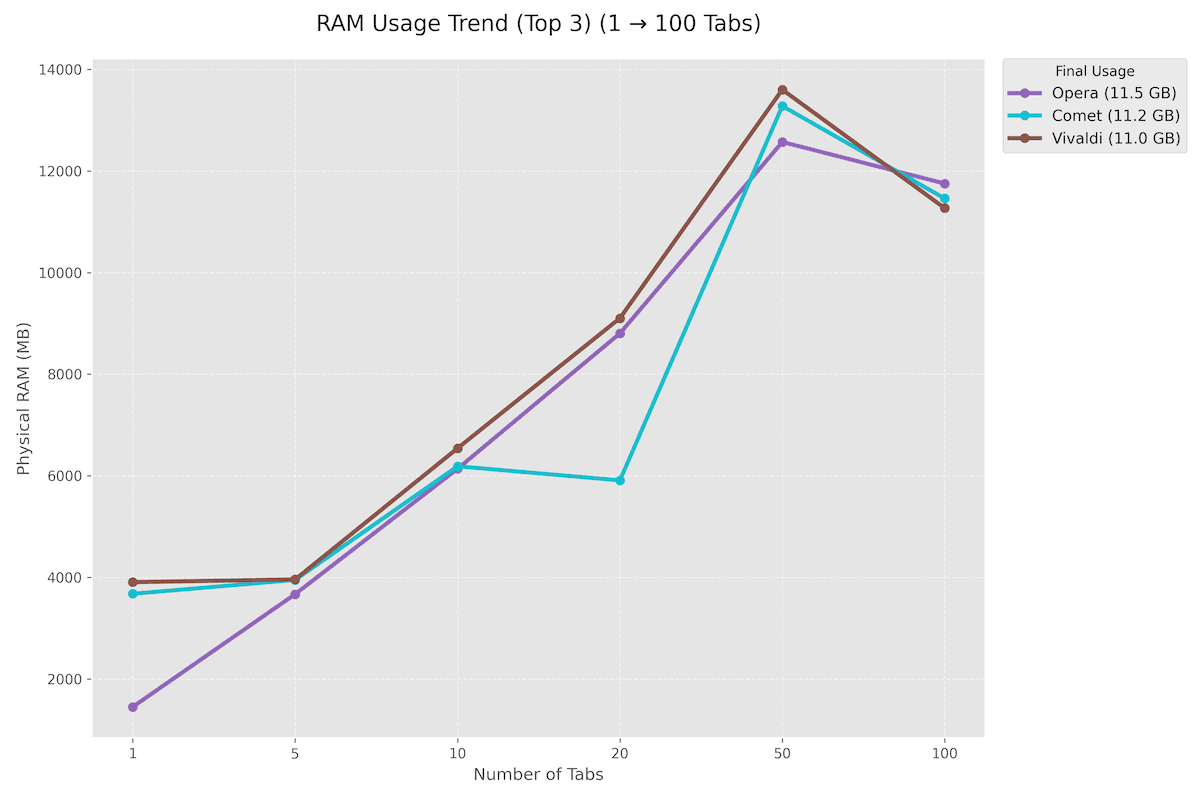
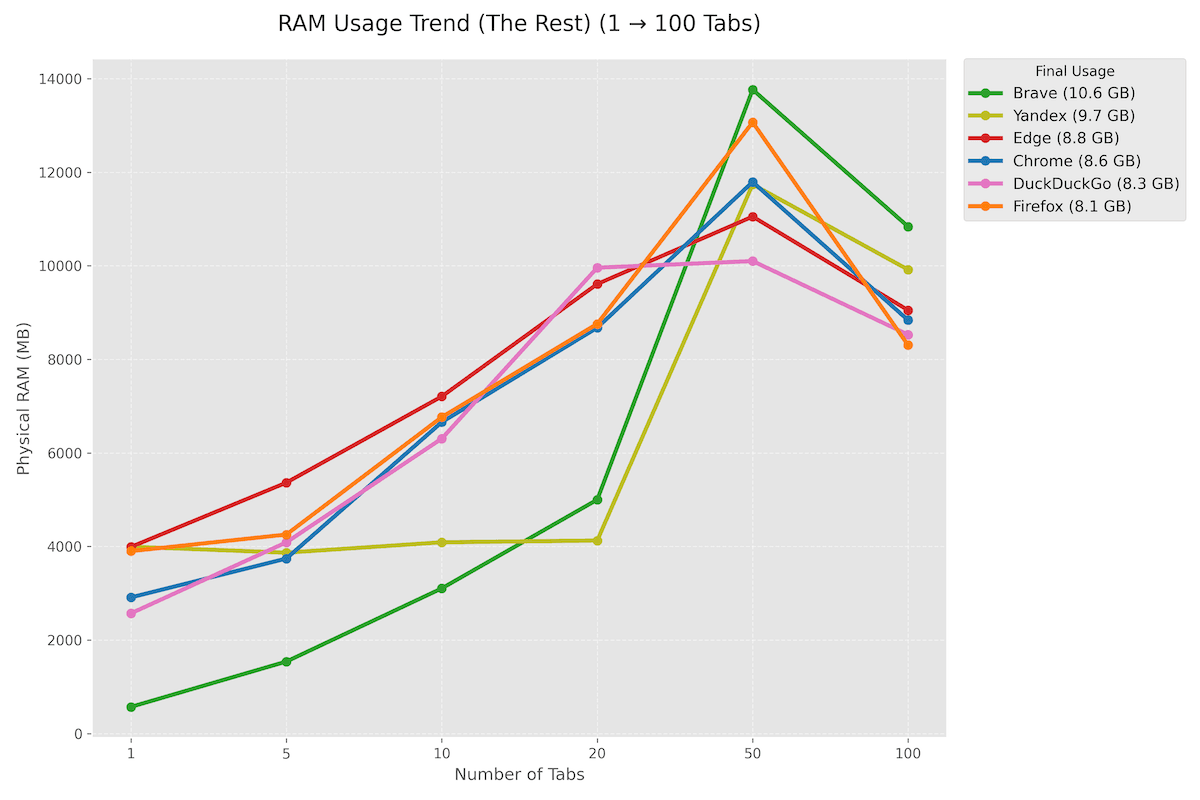
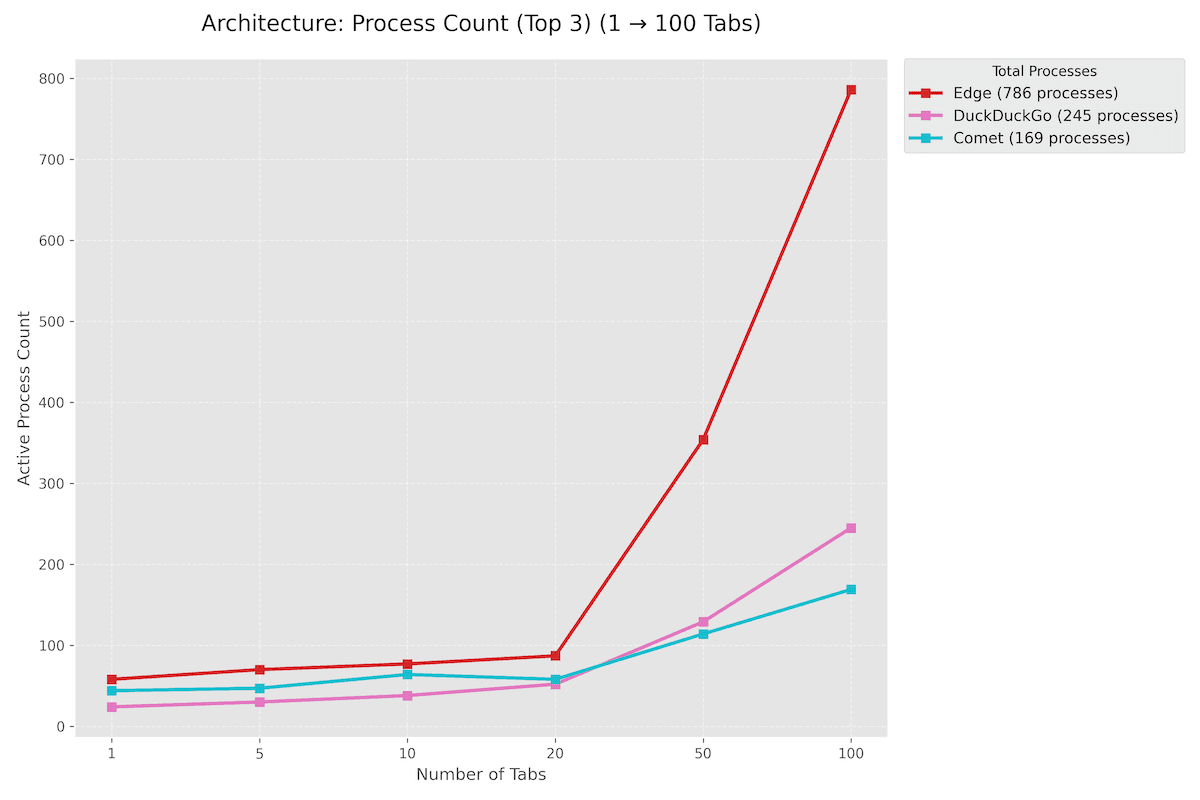
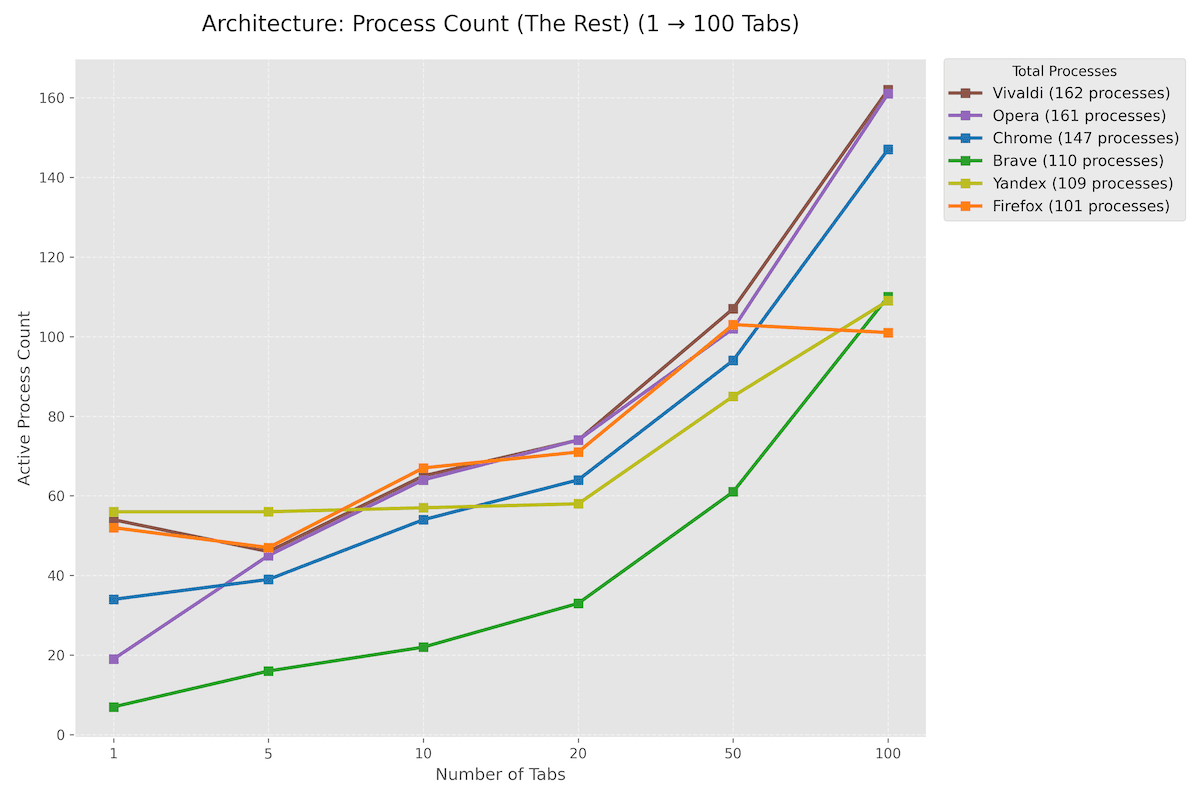
The first script ran each browser separately in different usage scenarios, with 1 tab open, then 5, 10 and 20 tabs opened instantly. This was to simulate the usage scenario where we close the browser and want to save the open tabs for the next session. At each run with the corresponding number of tabs, the automation collected information about physical RAM usage, the amount of memory allocated to the browser by the operating system, both physical and virtual, as well as swap memory, meaning the part that was written to disk when there was no more physical RAM available. It also collected the number of processes opened by the browser.
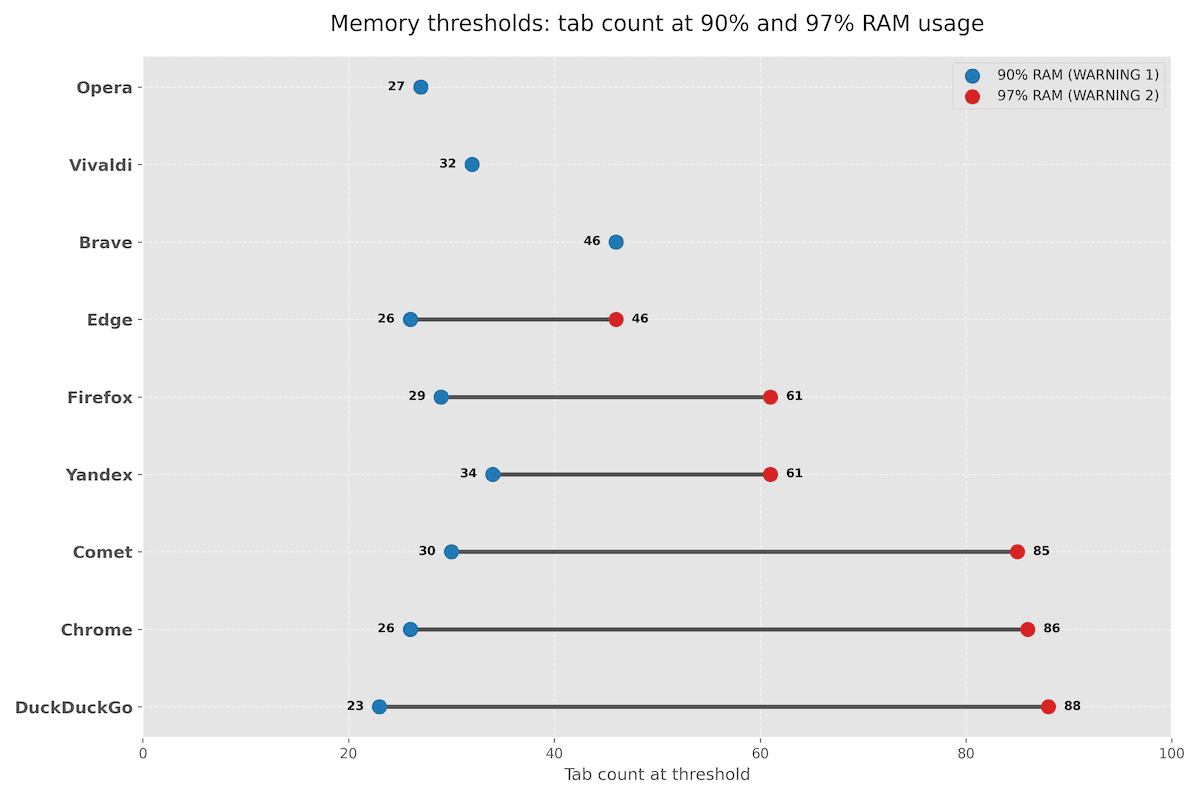
In the second testing phase, I opened, sequentially in each browser, 50 and then 100 tabs and tracked the same variables as above: physical RAM, allocated virtual memory and swap memory. In addition, in this second phase I set two warning thresholds: when 90% of physical memory was used and when 97% of physical RAM was used.
The thresholds were chosen because at 90% physical memory usage, which in my case meant about 1.6 GB of free RAM, the operating system starts moving data to disk, so this is where we can experience OS slowdowns. And 97% is the moment when the operating system, out of 16 GB, is left with about 400–500 MB of RAM, and that process of moving data to disk accelerates. For computers with more or less RAM, these thresholds are, of course, adjusted accordingly.
I measured these two thresholds based on how many tabs the browser was able to open before hitting them. In other words, how efficiently the browser uses the system’s available memory.
At the end I extracted the data and generated charts so we could see the consumption and draw conclusions.
Browsers Included in the 2026 Test
I started the tests with 10 of the best‑known browsers, beginning with the “heavyweights” like Chrome, Edge, Firefox, Opera and continuing with browsers considered more niche or outsiders like Brave, Vivaldi, DuckDuckGo, Comet, Yandex and Samsung Internet.
Unfortunately, after installation, Samsung Internet simply refused to start in any way. Not that surprising, since it’s still in beta. So I removed it from the tests.
Browser analysis criteria used for the ranking
To avoid eyeballing the charts and picking a winner subjectively, I built a single score: Gadgetisimo Memory Score (0–100).
The idea is simple: a good browser doesn’t just use little RAM, it also holds up longer without pushing Windows to the limit (swap / freezes).
The score combines 4 criteria, each converted into points on the same scale (0–100), then weighted.
TL;DR – Gadgetisimo Memory Score Explained
- The score is 0–100 and combines 4 criteria: Stability (40%), Swap/Pagefile (30%), real RAM RSS (20%), Overhead + processes (10%).
- Stability is based on memory thresholds: W1 = 90% RAM, W2 = 97% RAM (W2 weighs more). If a browser never reaches 97%, it gets the maximum for W2.
- Swap/RSS/Overhead/Processes are converted into 0–100 points by normalization (best = 100, worst = 0).
- Formula: Score = 0.40 × Stability + 0.30 × Swap + 0.20 × RSS + 0.10 × Architecture
Gadgetisimo Memory Score detailed explanation
Step 1: Criteria definition
1) Stability under pressure (40%)
Here I care about when the system starts to “suffer”.
I tracked two thresholds:
- W1 (90% RAM) = at how many tabs the PC reaches 90% RAM
(this is where the first signs can appear: slowdowns, lag) - W2 (97% RAM) = at how many tabs it reaches 97% RAM
(critical zone: the risk of freeze/crash increases a lot)
Important: if a browser never reaches W2 in the test, that’s a good thing. In the calculation I treat it as having reached “100” (meaning it held up until the end without hitting the critical threshold). To keep it clear and simple: if W2 = 0 in the log (not reached), I treat it as W2 = 100.
Then stability gets points like this: W2 weighs more than W1 (97% is the critical threshold).
Stability = 0.25 × W1 + 0.75 × W2 (Example: if a browser hits 90% at 40 tabs and 97% at 90 tabs → Stability = 0.25×40 + 0.75×90 = 77.5 points)
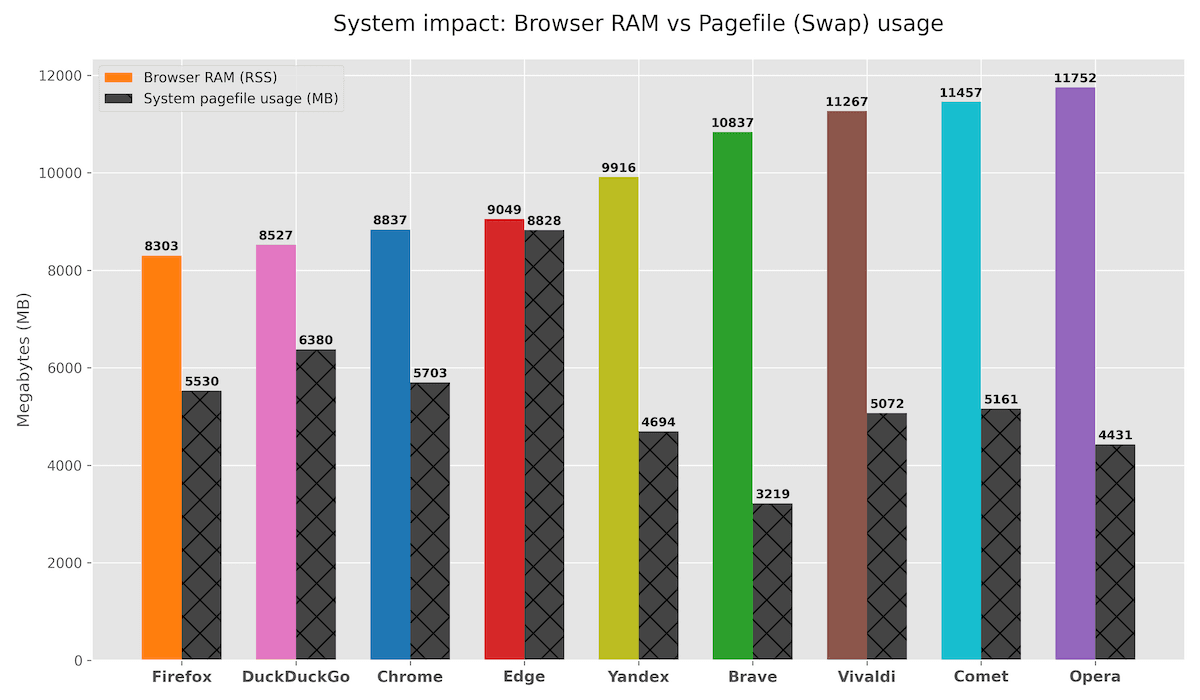
2) Swap/Pagefile at 100 tabs (30%)
Windows uses swap/pagefile when RAM is no longer enough. This is one of the main reasons for “everything running in slow motion”.
Here the scoring is simple: less swap = better.
3) Real RAM (RSS) at 100 tabs (20%)
RSS is the “real” memory the browser occupies in RAM (not theoretical).
We score: less RSS = better.
4) Architecture: overhead + processes (10%)
This is a secondary but useful criterion:
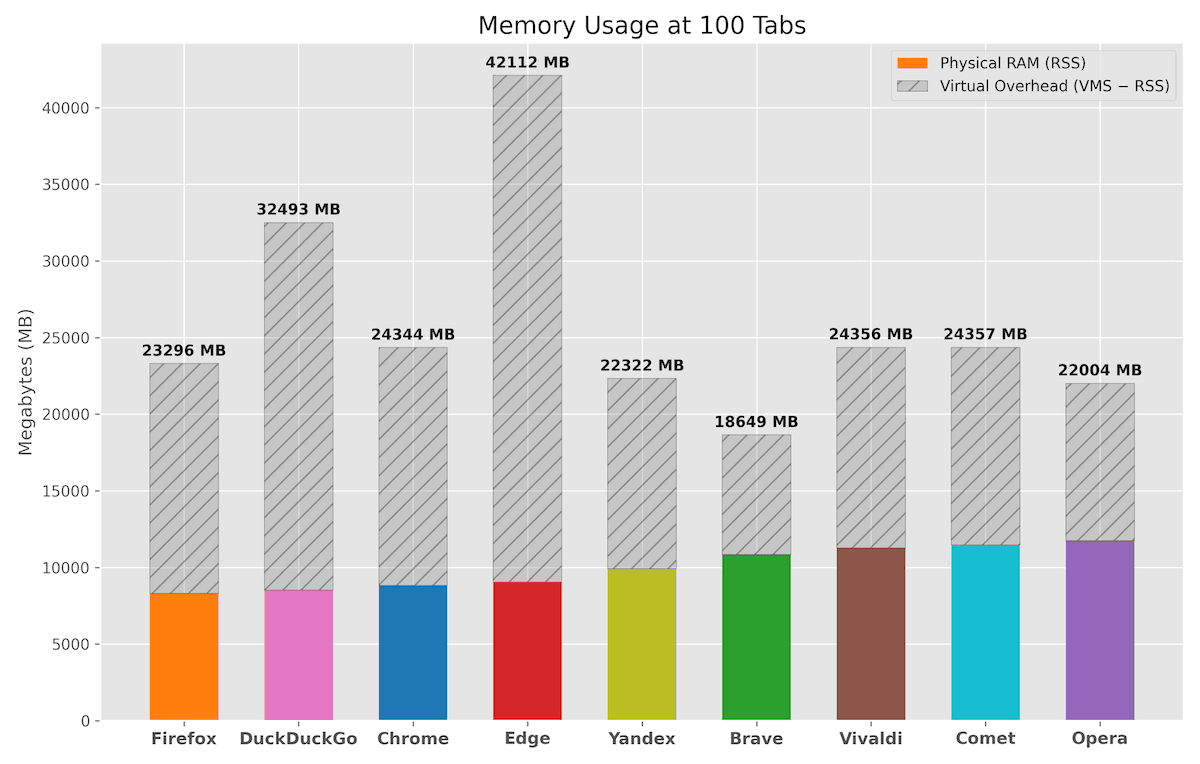
- Overhead = VMS – RSS (how much virtual memory it allocates beyond what it actually uses)
- Processes = how many processes the browser has at 100 tabs
We score:
- less overhead = better
- fewer processes = better (on average; it’s a trade‑off)
And we combine them: Architecture = 0.60 × Overhead + 0.40 × Processes (Overhead weighs more.)
Step 2: how I turn values into “points” (0–100)
The problem is that W1/W2 are “tabs”, while RSS/Swap are “MB”. You can’t just add them up.
So I do something simple and fair: for each criterion (Swap, RSS, Overhead, Processes) I convert the values into 0–100 points using min–max normalization:
Points = 100 × (worst − browser value) / (worst − best)
This way:
- the best browser for that criterion gets 100
- the worst gets 0
- the rest fall in between.
For stability (W1/W2) it’s even simpler, since they’re already “tabs out of 100”, so the points are directly W1 and W2 (with the rule W2 = 100 if it’s not reached).
Final formula (total score)
Gadgetisimo Memory Score = 0.40 × Stability + 0.30 × Swap_pts + 0.20 × RSS_pts + 0.10 × Architecture_pts
Where:
- Stability is calculated from W1/W2 (in tabs out of 100)
- Swap_pts / RSS_pts / Architecture_pts are 0–100 points obtained through min–max normalization
Top 3 Browsers by RAM Efficiency
| Rank | Browser | Gadgetisimo Memory Score | Stability Points | Swap Usage Points | RSS usage Points | Arhitecture Points | W1 (90%) | W2 (97%) |
|---|---|---|---|---|---|---|---|---|
| 1 | Brave | 79.85 | 86.5 | 100 | 26.52 | 99.47 | 46 | 100 |
| 2 | Chrome | 69.93 | 71 | 55.73 | 84.53 | 79.03 | 26 | 86 |
| 3 | Firefox | 67.14 | 53 | 58.81 | 100 | 82.94 | 29 | 61 |
Test Results and Full Ranking
| Rank | Browser | Gadgetisimo Memory Score | Stability Points | Swap Usage Points | RSS usage Points | Arhitecture Points | W1 (90%) | W2 (97%) |
|---|---|---|---|---|---|---|---|---|
| 1 | Brave | 79.85 | 86.5 | 100 | 26.52 | 99.47 | 46 | 100 |
| 2 | Chrome | 69.93 | 71 | 55.73 | 84.53 | 79.03 | 26 | 86 |
| 3 | Firefox | 67.14 | 53 | 58.81 | 100 | 82.94 | 29 | 61 |
| 4 | Opera | 65.99 | 83.5 | 78.4 | 0 | 90.7 | 34 | 100 |
| 5 | DuckDuckGo | 65.82 | 71.75 | 43.65 | 93.52 | 53.21 | 23 | 88 |
| 6 | Yandex | 63.32 | 54.25 | 73.71 | 53.23 | 88.62 | 34 | 61 |
| 7 | Comet | 58.42 | 71.75 | 65.38 | 8.54 | 83.94 | 32 | 85 |
| 8 | Vivaldi | 45.69 | 36 | 66.97 | 14.06 | 83.9 | 33 | 37 |
| 9 | Edge | 32.07 | 41 | 0 | 78.37 | 0 | 26 | 46 |
Abbreviation explanation
- RSS = RAM actually used; VMS = virtual memory; Overhead = VMS–RSS.
- Swap/Pagefile = memory moved to disk when RAM fills up (more = slower system).
- W1/W2 = the tab at which 90% / 97% RAM is reached (97% = critical zone); Processes = number of browser processes.
Detailed Abbreviation explanation
- RSS (Resident Set Size) – the “real” memory actually occupied in RAM by the browser processes (what you see as physical memory used).
- RAM / RSS @100 – RSS measured when the test reaches 100 tabs.
- VMS (Virtual Memory Size) – the virtual memory reserved/managed by the browser (virtual addressing), which can be larger than the RAM actually used.
- Overhead (VMS – RSS) – the difference between virtual memory and physical memory used.
- Swap / Pagefile – the disk memory space used by Windows when RAM starts to fill up (pagefile.sys).
- W1 (Warning 1 / 90% threshold) – the number of tabs at which the system reaches ≥90% RAM usage.
- W2 (Warning 2 / 97% threshold) – the number of tabs at which the system reaches ≥97% RAM usage.
- Processes (Process Count) – how many processes the browser has at the time of measurement.
- Target Tabs – how many “target” tabs the script tries to open.
- Reached Tabs – how many tabs it actually managed to open.
Real-World Interpretation of the Results
Below is the ranking resulting from the Gadgetisimo Memory Score, followed by a short explanation for each browser (in real‑world usage terms).
1) Brave — 79.85 (1st place)
Brave wins because it’s the only one that combines excellent stability with minimal impact on the system. In the test it never reaches the critical threshold (97% RAM), and at 100 tabs it has the lowest swap, which means the system stays usable for longer. It’s not the champion in RSS (it doesn’t use the least RAM), but it makes up for that by not pushing Windows into the pagefile.
2) Chrome — 69.93 (2nd place)
Chrome ranks very high thanks to a solid mix: good RSS at 100 tabs and a critical threshold reached very late (it holds out for a long time before hitting 97% RAM). Practically, if you want a browser that stays stable under aggressive multitasking, Chrome behaves predictably. What drags it down compared to Brave is that it has higher swap at 100 tabs.
3) Firefox — 67.14 (3rd place)
Firefox scores heavily on RAM efficiency: it has the lowest RSS at 100 tabs, so it occupies the least physical memory. This is a very good result for anyone with 16 GB RAM who wants to stay “in the green zone” as long as possible. However, in the test it reaches the critical zone earlier than Chrome, and its swap is only average, which keeps it from climbing to 2nd place.
4) Opera — 65.99 (4th place)
Opera performs surprisingly well in terms of stability (it doesn’t hit the critical threshold in the test) and has relatively good swap plus a decent architecture. The problem is that at 100 tabs it has a very high RSS (high RAM usage), which cuts into its score. In other words: it holds up, but it does so by allowing itself to consume a lot.
5) DuckDuckGo — 65.82 (5th place)
DuckDuckGo looks good on W2 (it reaches the critical zone late) and has very good RSS at 100 tabs. That’s why its total score stays high. On the other hand, it’s penalized by higher swap and a less efficient architecture (overhead/processes), which keeps it below Opera and out of the top 3.
6) Yandex — 63.32 (6th place)
Yandex isn’t “perfect”, it just has a technically balanced profile in a few areas: good swap and good architecture (overhead/processes). However, the critical threshold (W2) appears relatively early in the test, and RSS is only average. The final result makes sense: a decent score, but not enough for the top 5.
7) Comet — 58.42 (7th place)
Comet scores decently on stability and has acceptable swap, but falls down on one simple criterion: very high RSS at 100 tabs. In other words, it manages to stay standing, but at a high cost in physical memory, which penalizes it in the final score.
8) Vivaldi — 45.69 (8th place)
Vivaldi reaches the critical threshold (W2) early, which significantly lowers its stability. Even though its swap and architecture are reasonable, poor stability plus still fairly high RSS keep it near the bottom.
9) Edge — 32.07 (9th place)
Edge is heavily penalized by two things: very high swap at 100 tabs and an extremely heavy architecture (overhead/processes). Even though its RSS is not the worst in the test, the combination of swap and architecture clearly pushes it to last place in this scoring.
Instead of a conclusion, I’d like to briefly comment on the Top 3 ranking from my own experience.
Chrome shows that it’s not just dependence on the Google ecosystem that makes it by far the most used browser in the world, but also its stability and balance in using resources efficiently, especially the balance between using available RAM and swap. This is very useful for systems with limited memory, for example 8 GB RAM.
Brave remains a browser that can be considered both lightweight and snappy at the same time, one of the most solid alternatives to the established browsers, in my view.
Although Firefox ranked near the bottom in last year’s raw performance test, this RAM usage test shows why there is still a strong and dedicated community behind this browser.
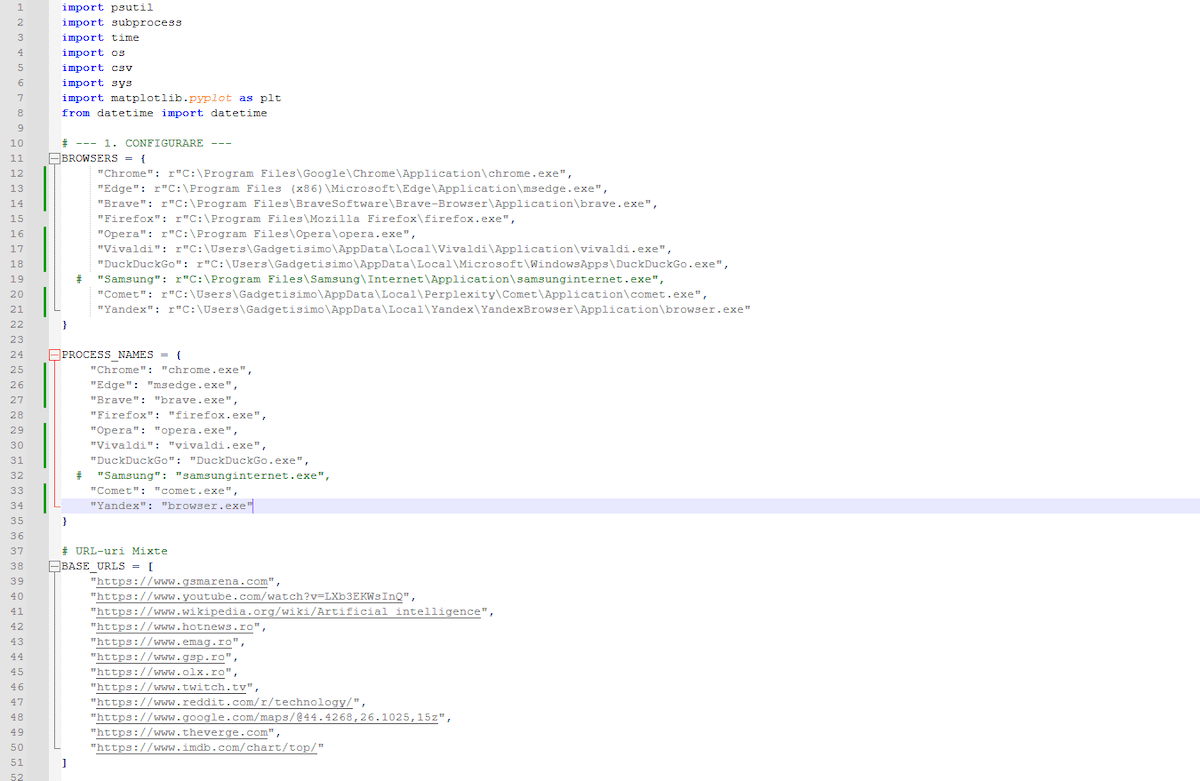
Tested Browsers and URLs Used in the Benchmark Script
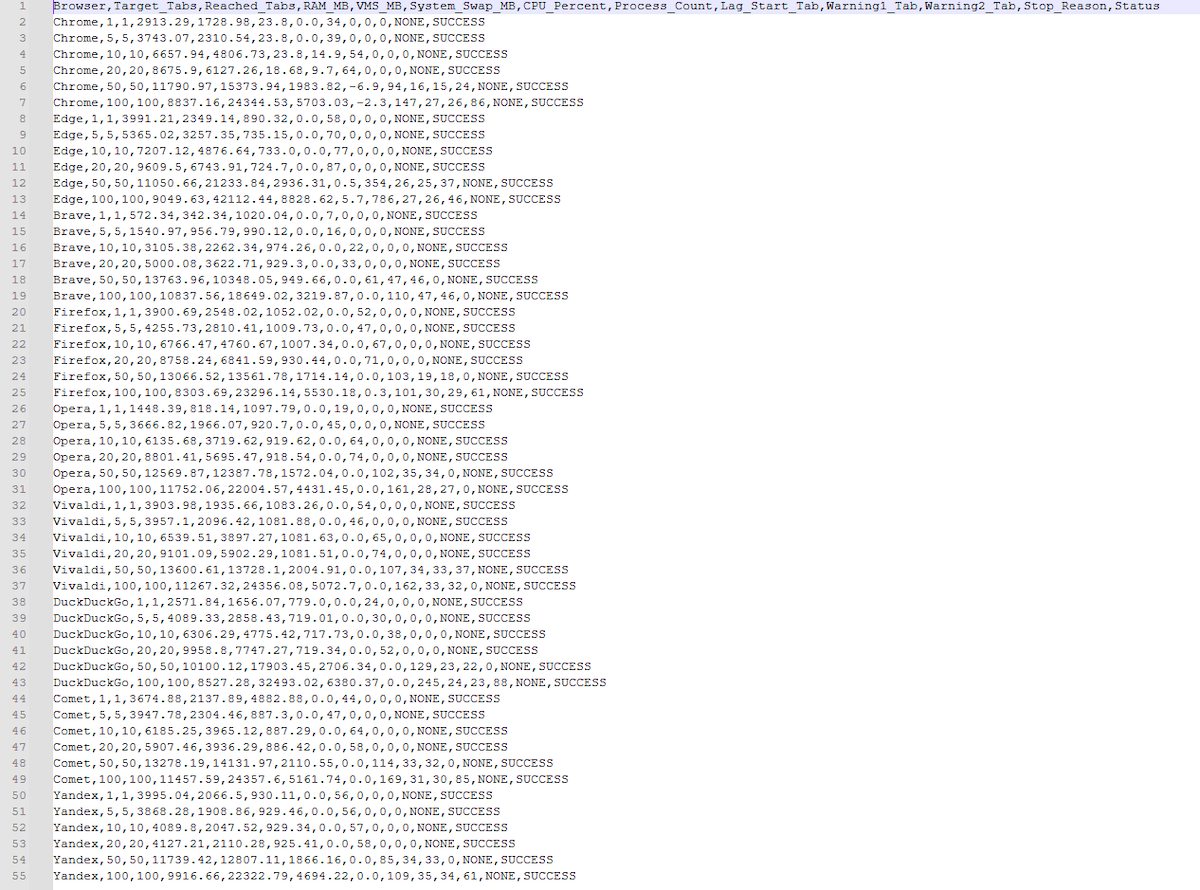
Benchmark Execution Log – Sample Output for Chrome
=== GADGETISIMO BROWSER BENCHMARK LOG ===
Start Time: 2026-01-24 13:05:13.927128
--------------------------------------------------
[13:05:13] 🚀 Final Benchmark Run Started (Smart Cooldown Enabled)
[13:05:13]

🔹 [Chrome] Target: 1 tab
[13:05:13] 🧹 Cleaning chrome.exe processes...
[13:05:17] ❄️ Waiting for system cooldown (Target: <50% RAM)...
[13:05:17] ✅ System Ready: RAM at 48.8%. Starting test.
[13:05:34] 📊 Result: 3438.37 MB RAM | 2113.19 MB VMS | 0.0 MB SysSwap | Processes: 38 | Status: SUCCESS
[13:05:34] 🧹 Cleaning chrome.exe processes...
[13:05:37]

🔹 [Chrome] Target: 5 tabs
[13:05:37] 🧹 Cleaning chrome.exe processes...
[13:05:40] ❄️ Waiting for system cooldown (Target: <50% RAM)...
[13:05:40] ✅ System Ready: RAM at 49.3%. Starting test.
[13:05:58] 📊 Result: 3743.07 MB RAM | 2310.54 MB VMS | 0.0 MB SysSwap | Processes: 39 | Status: SUCCESS
[13:05:58] 🧹 Cleaning chrome.exe processes...
[13:06:02]

🔹 [Chrome] Target: 10 tabs
[13:06:02] 🧹 Cleaning chrome.exe processes...
[13:06:05] ❄️ Waiting for system cooldown (Target: <50% RAM)...
[13:06:05] ✅ System Ready: RAM at 48.5%. Starting test.
[13:06:26] 📊 Result: 6125.40 MB RAM | 4064.64 MB VMS | 0.0 MB SysSwap | Processes: 55 | Status: SUCCESS
[13:06:26] 🧹 Cleaning chrome.exe processes...
[13:06:30]

🔹 [Chrome] Target: 20 tabs
[13:06:30] 🧹 Cleaning chrome.exe processes...
[13:06:33] ❄️ Waiting for system cooldown (Target: <50% RAM)...
[13:06:33] ✅ System Ready: RAM at 49.8%. Starting test.
[13:06:59] 📊 Result: 8924.26 MB RAM | 6360.23 MB VMS | 18.68 MB SysSwap | Processes: 65 | Status: SUCCESS
[13:06:59] 🧹 Cleaning chrome.exe processes...
[13:07:02]

🔹 [Chrome] Target: 50 tabs
[13:07:02] 🧹 Cleaning chrome.exe processes...
[13:07:06] ❄️ Waiting for system cooldown (Target: <50% RAM)...
[13:07:06] ✅ System Ready: RAM at 49.3%. Starting test.
[13:08:21] ⚠️ WARNING 1: RAM usage reached 91.6% at approximately 15 open tabs.
[13:08:21] ⚠️ LAG START: Noticeable system lag beginning at tab 16 (91.6% RAM usage).
[13:09:06] 🟠 WARNING 2: RAM usage reached 97.9% at approximately 24 tabs. Activating swap-rate monitoring.
[13:11:16] ✅ All 50/50 tabs opened. Stabilizing system...
[13:11:33] 📊 Result: 11790.97 MB RAM | 15106.03 MB VMS | 2008.78 MB SysSwap | Processes: 94 | Status: SUCCESS
[13:11:33] 🧹 Cleaning chrome.exe processes...
[13:11:42]

🔹 [Chrome] Target: 100 tabs
[13:11:42] 🧹 Cleaning chrome.exe processes...
[13:11:45] ❄️ Waiting for system cooldown (Target: <50% RAM)...
[13:11:45] ✅ System Ready: RAM at 28.9%. Starting test.
[13:13:55] ⚠️ WARNING 1: RAM usage reached 92.0% at approximately 26 open tabs.
[13:13:55] ⚠️ LAG START: Noticeable system lag beginning at tab 27 (92.0% RAM usage).
[13:18:56] 🟠 WARNING 2: RAM usage reached 97.1% at approximately 86 tabs. Activating swap-rate monitoring.
[13:20:06] ✅ All 100/100 tabs opened. Stabilizing system...
[13:20:23] 📊 Result: 8837.16 MB RAM | 25283.15 MB VMS | 5506.25 MB SysSwap | Processes: 147 | Status: SUCCESS
[13:20:23] 🧹 Cleaning chrome.exe processes...
[13:20:32]Articles selected automatically based on the current article. Model: gpt-5