



I won’t go into the need to parameterize applications. Of any kind. An application must be as flexible as possible regarding the constants it works with. We don’t rewrite an accounting application every time the Government dreams up a new VAT rate.
What I’ll show here is a different approach to storing, accessing, or modifying the parameters (settings) used by a VBA application in Excel.
Microsoft lets us use parameters in the Registry and provides four functions for this: GetSetting, GetAllSettings, SaveSetting, and DeleteSetting. The settings appear in the Registry under the key
All good. I have a place where I can access settings shared by several Excel VBA applications. I have simple functions to do that. But we all know how prone the Registry is to errors or corruption. Plus, for a developer, during debugging it’s a pain to track multiple parameters in the Registry at the same time.
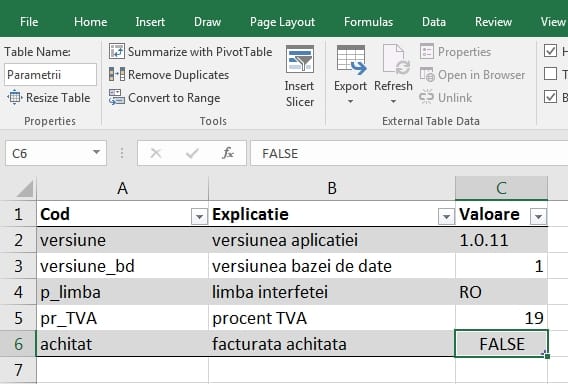
What I’m proposing here is a different approach that keeps the advantages of the classic solution but also brings a number of benefits. For elegance and ease of use, we’ll have a separate sheet with a Table that will contain the parameters.
Advantages
- Just like in the classic case, I have clear and simple functions for handling parameters
- The parameters are stored centrally (if I need that) or even in the file that contains the VBA application. Basically, if I move the application, I move the current settings as well; I no longer have to create them with default values on first run.
- The Explanation column (which is optional) helps when I want to debug something months later. Where it makes sense, I also use a column with Possible values. For example, for VAT I could fill in 19, 9, and 0 there.
- I can clearly and very easily see parameter changes with Step Into or at the end of execution.
- I can very easily change them manually before or during debugging.
- I have an overview of all parameters. I can sort them however I want because the functions don’t depend on order. I can list them, send them by email, or add / delete them much more easily and quickly.
- I can add any column I need, any formatting (and that formatting can itself become a parameter of the parameter)
- I can easily maintain interface translation or error message translation for multi-language applications. And I can do that in other tables on the same sheet.


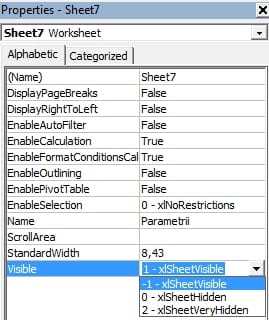
In the end, when the application is ready for use, all you have to do is hide the sheet from its properties.
Disadvantages
The only major downside I see is related to speed and memory usage. On the one hand, if I use a separate file for parameters shared by several applications, that file has to be opened (as Hidden), and on the other hand, if I use a sheet in the file that contains the VBA project and that file is large, every save adds extra time.
That said, here is what the function for reading and the procedure for modifying a Boolean parameter look like:
1 2 3 4 5 6 7 8 9 10 11 12 | Private Function GetParamAsBoolean(par As String) As Boolean Dim randul As Integer randul = Application.WorksheetFunction.Match(par, Worksheets("Parametrii").ListObjects("Parametrii").ListColumns("Cod").Range, 0) GetParamAsBoolean = Worksheets("Parametrii").ListObjects("Parametrii").ListColumns("Valoare").DataBodyRange(randul - 1).Value End Function Public Sub SetParamAsBoolean(par As String, valoare As Boolean) Dim randul As Integer randul = Application.WorksheetFunction.Match(par, Worksheets("Parametrii").ListObjects("Parametrii").ListColumns("Cod").Range, 0) Worksheets("Parametrii").ListObjects("Parametrii").ListColumns("Valoare").DataBodyRange(randul - 1).Value = valoare ThisWorkbook.Save End Sub |
The Gadgetisimo.ro – MIT License applies for open source software. See here
The functions are written assuming that the Parametrii sheet is in the file that contains the VBA project, that this sheet contains the Parametrii table, that the parameter code is in the Cod column, and the value in the Valoare column.
Explanations
The function GetParamAsBoolean(par As String) As Boolean
- has its own parameter par, which is the parameter code, for example achitat
- the function searches for the code in the table (using the Excel MATCH function) and gets the row number where it is found
- then the function returns the value from that row and the Valoare column
- the function is private so that it doesn’t appear in Excel when inserting functions
The procedure SetParamAsBoolean(par As String, valoare As Boolean)
- has two parameters of its own, the code and the parameter value to be changed, for example achitat and TRUE
- the procedure searches for the row where the code is located (using the Excel MATCH function)
- then the procedure changes the value on that row and in the Valoare column
- at the end, the procedure saves the file (line 11, highlighted in the code above)
Note: given the extra time required for saving, if your application performs several parameter changes one after another, it’s better to remove the file save from the modification procedure and place the save in the calling code, once, at the end of all changes.
Sources: Freepick.com
