


In the second part of our series about the mobile desktop, we go over 4 solutions from phone and tablet manufacturers
Desktop on mobile from Samsung
From Samsung we have the Samsung DeX solution. DeX is, quite rightly in my opinion, considered the king and the one everyone else looks up to. For many years it was the only (almost) complete solution. And it didn’t just exist, it actually sold. And it built a fairly large community of fans. Not fanatics, but down‑to‑earth fans who knew how to acknowledge the downsides, be vocal, and try to find solutions. The community’s reaction to Samsung’s decision to remove “Linux on DeX”, the solution for having a real desktop on your phone straight from the factory, is well known.
Samsung DeX can be used on a phone, tablet, or PC and can use as a screen (wired or wireless) the tablet’s display, an external display (portable or PC monitor), or a TV.
On the page Set up and use Samsung DeX on your Galaxy phone or tablet you’ll find official information about Samsung devices compatible with DeX.
Samsung didn’t just offer the software solution, it also brought hardware solutions to make DeX easier to use: DeX Station and DeX Pad (desktop docks with LAN, USB, HDMI ports and a built‑in fan) and even a DeX keyboard. Well, it’s a multi‑device keyboard, but with a DeX key 😊
A good source of information (many of which are useful for other mobile desktop solutions too, not just Samsung’s) is r/SamsungDex on Reddit. The folks there have also summarized some information in a wiki.
Even though they dropped Linux on DeX (there are workarounds), even though some people feel that Samsung has stopped caring (or has eased off the gas), even though there are small (or big) issues, Samsung DeX remains a fairly robust and accessible solution for a mobile desktop.
Desktop on mobile from Motorola
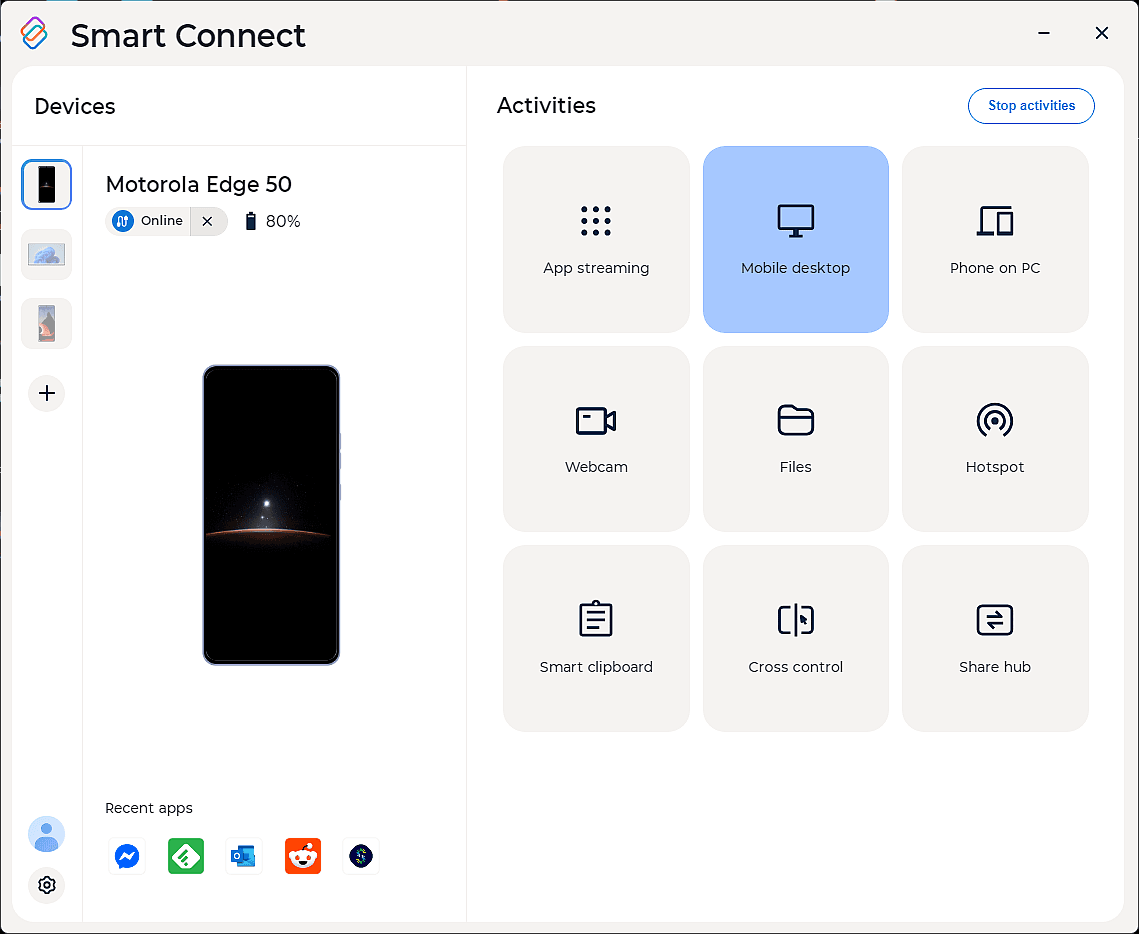
From Motorola we have Smart Connect (formerly Ready For). The latest major change (the move from Ready For to Smart Connect) wasn’t just a simple name change. Motorola’s solution, as the new name suggests, intelligently connects devices. Phone, tablet, PC.
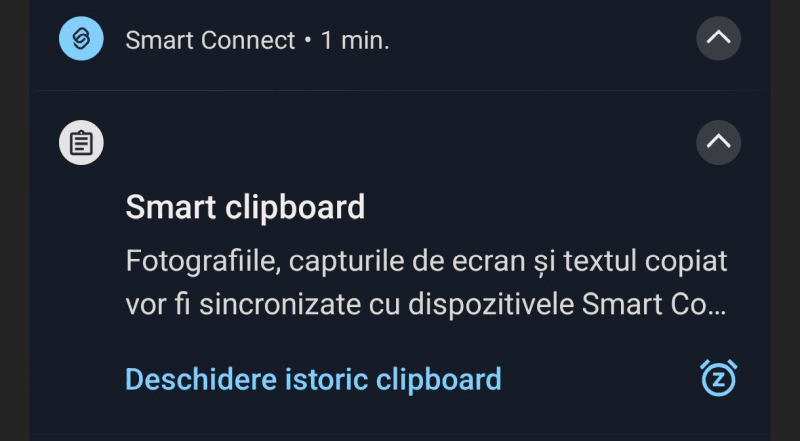
On top of the mobile desktop, we also get the following:
- App Streaming
- Phone on PC
- Webcam
- Files
- Hotspot
- Smart clipboard
- Cross control
- Share Hub
On the page Smart Connect Compatibility Chart you’ll find the necessary information about which phones support Smart Connect and over what type of connection
But we’ll talk about all of this in a future series dedicated entirely to Motorola’s solution.
Android mobile desktop
Do you have a different Android phone? No problem. Starting with Android 10, Google introduced a “Desktop Mode” for everyone. It’s just not out‑of‑the‑box like on Samsung or Motorola. Or you can wait until Google brings something on Pixel phones that’s on par with Samsung or Motorola. That’s if they bring it and don’t then bury it, as they usually do.
What settings are needed for Android Desktop Mode:
- Go to your phone’s settings
- If Developer Options are not enabled, go to About phone and tap Build number 7 times
- Go to Developer options and check Force desktop mode, Enable freeform windows, and Force activities to be resizable
- Optional, for a better experience, install these 2 apps. I used them on a OnePlus 7 and they’re very useful. Follow the apps’ instructions exactly. For example, with SecondScreen you’ll need an ADB command, so you’ll also need to install Android Debug Bridge (ADB) on your PC – download ADB from Google
- TaskBar – a launcher that gives us an interface closer to a PC desktop
- SecondScreen – you can set the resolution and pixel density (dpi) for the external display
Mobile desktop from Apple?
Uuuh, yes. Sort of. And only on iPad. It’s called Stage Manager. I’ll pass. You can read about it here What Is Stage Manager & How to Use on iPad Mini/Pro/Air [Latest] |2025|
Desktop on Mobile – Part 1
Let’s see what mobile desktop is and what it’s used for on a phone or tablet
Desktop on Mobile – Part 3
Let’s go step by step and see how to install Linux on Android, so we can have a real mobile desktop system in our pocket.
Desktop on Mobile – Part 4
In the last article of the series, we draw some conclusions. Is a mobile desktop worth it or not?

Post fully edited on Smart Connect (Ready For) / Motorola Edge 50 Ultra
Sources: Openverse
