


Introduction
I don’t think we still need to talk about the advantages of QR codes compared to barcodes. Their widespread use speaks for itself. The big advantage is that we can encode (almost) anything.
On top of that, the more information we need to encode, the more the width of the barcode has to increase, because the thinnest bar and the smallest distance between bars have lower limits, determined by the readability that must be provided to the barcode reader, which is an optical system. See, for example, the codes on invoices. The same amount of information can be encoded as a QR code on a much smaller area. Of course, QR codes also have a readability issue. The more information we cram into the same area, the more complex the QR code becomes.
Practically, for the same area, the black and white squares get smaller, and if we hit the readability limit, we’ll have to increase the size of the QR code. But the required area is much smaller than in the case of barcodes.
Getting the QR code
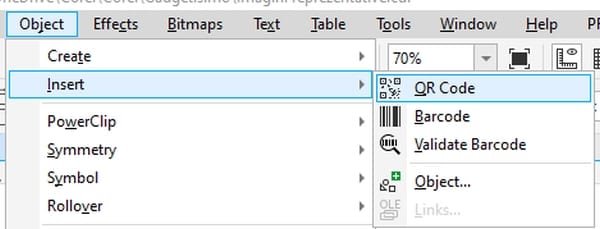
There are countless websites that offer free QR code generation. And CorelDraw offers QR code insertion directly in the application.
But what we’re interested in is automation, to insert multiple QR codes simply and quickly. For example, we need to make 100 labels for 100 different products. We’ll create a file with the necessary information (in tabular format) and from that we’ll generate 100 QR codes with a single run of a VBA or Basic function. One hundred times, yes, but we’re not the ones doing the running 😀.
To do this we’ll use a website that lets us download a QR code (a file containing the QR code image) after accessing a link. We’ll generate that link ourselves, based on the information we want to appear in the QR code. In the code we’ll also insert other information related to the QR code, for example the graphic file format we want (SVG, PNG, JPG or others).
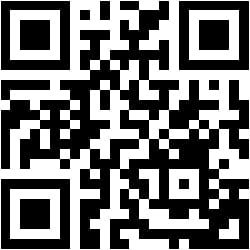
For example, by accessing the link https://api.qrserver.com/v1/create-qr-code/?data=https%3A%2F%2Fgadgetisimo.ro%2F, we get this QR code, which takes us to our website address:
The main site we’re using is QR Code Generator. On the first page you’ll find all kinds of specific generators: URL (web address), text, e-mail, etc. But we’ll use the API created exactly for what we need, at goqr.me/api. There you’ll find all the information you need. We’ll be creating QR codes, so we’ll use the documentation at goqr.me/api/doc/create-qr-code/. Read it all, carefully. There we learn something very important: there is no request limit, but you should keep it under 10,000 requests per day. No account is required, and the service is completely free. Let’s hope they stay on the market for as long as possible.
The format of the link we’ll use is:
https://api.qrserver.com/v1/create-qr-code/?data=strTextQR&ecc=H&format=svg
where strTextQR is the text we want to encode. You’ll find the other two parameters (ecc and format) in the API documentation.
The general logic of the code is as follows:
- Get the text to be encoded, strTextQR, from the file we mentioned at the beginning. How we obtain this text is not the subject of this article.
- Build the link. Here we’ll use strTextQR, then modify it so that it’s acceptable from a web link point of view. Not every character can be part of a web link. For example, the colon : character appears immediately after https and only there. If it appears somewhere inside strTextQR, the link is not correctly formed and will not be accessible. That’s why it has to be replaced with its Hex equivalent, which is 3A. And for the browser to know that a Hex code follows, we put the % character in front: %3A. The function for this transformation is URLencode().
- Download the file we receive when we access the link built with strTextQR. Here we use the DownloadFile() and URLDownloadToCacheFile() functions.
- Insert the downloaded file into the desired document. For this we use the QR_Insert() procedure.
- Move on to the next text in the tabular file.
Automatic QR code insertion in Microsoft Office and VBA
Almost the entire VBA code is common to any Microsoft Office application; the difference is at the end, lines 28–54. You’ll use the line(s) of code specific to each application in the Microsoft Office suite.
Usage examples:
1 2 3 4 5 6 7 8 9 10 11 12 13 14 15 16 17 18 19 20 21 22 23 24 25 26 27 28 29 30 31 32 33 34 35 36 37 38 39 40 41 42 43 44 45 46 47 48 49 50 51 52 53 54 55 56 57 58 59 60 61 62 63 64 65 66 67 68 69 70 71 72 73 74 75 76 77 78 79 80 81 82 83 84 85 86 87 88 89 90 91 92 93 94 95 96 97 98 99 100 101 102 103 104 105 106 107 108 109 110 111 112 113 114 115 116 117 118 119 120 121 122 123 124 125 126 127 128 129 130 131 132 133 134 135 136 137 138 | Option Explicit Private Declare PtrSafe Function URLDownloadToCacheFile Lib "urlmon" Alias _ "URLDownloadToCacheFileA" (ByVal lpUnkcaller As Long, ByVal szURL As String, _ ByVal szFileName As String, ByVal dwBufLength As Long, ByVal dwReserved As Long, _ ByVal IBindStatusCallback As Long) As Long Function DownloadFile(URL As String) As String Dim szFileName As String szFileName = Space$(300) If URLDownloadToCacheFile(0, URL, szFileName, Len(szFileName), 0, 0) = 0 Then DownloadFile = Trim(szFileName) End If End Function Private Sub QR_Insert(strQRText As String) Dim strFile_Path As String strFile_Path = DownloadFile("http://api.qrserver.com/v1/create-qr-code/?data=" & URLencode(strQRText) & "&ecc=H&format=svg") 'If the file is not obtained (incorrect link, no Internet access, site issues) -> Exit If strFile_Path = "" Then MsgBox "The server http://api.qrserver.com cannot be accessed", vbOKOnly + vbCritical, "Error" Exit Sub End If 'Word 'ActiveDocument.Shapes.AddPicture strFile_Path 'Excel 'Cells(3, 4).Select 'ActiveWorkbook.ActiveSheet.Pictures.Insert strFile_Path 'PowerPoint 'ActiveWindow.Selection.SlideRange.Shapes.AddPicture strFile_Path, msoFalse, msoTrue, Left:=60, Top:=35 'Outlook insert in message body ' Dim Email As Outlook.MailItem ' Dim objAtasament As Attachment ' Set Email = CreateItem(olMailItem) ' Set objAtasament = Email.Attachments.Add(strFile_Path) ' With Email ' .HTMLBody = "<html><body><img src='cid:" & objAtasament.FileName & "'></body></html>" ' .Display ' End With 'Outlook as attachment ' Dim Email As Outlook.MailItem ' Set Email = CreateItem(olMailItem) ' With Email ' .Attachments.Add strFile_Path ' .Display ' End With End Sub Function URLencode(textul As String) As String ' https://www.w3schools.com/tags/ref_urlencode.ASP ' for UTF-8 ' CR -> %0D Not used ' LF -> %0A Not introduced in array, search for vbLf Dim i As Integer Dim arrInloc(32, 2) As String arrInloc(0, 0) = "%" arrInloc(0, 1) = "%25" arrInloc(1, 0) = "+" arrInloc(1, 1) = "%2B" arrInloc(2, 0) = " " arrInloc(2, 1) = "+" arrInloc(3, 0) = "!" arrInloc(3, 1) = "%21" arrInloc(4, 0) = """" arrInloc(4, 1) = "%22" arrInloc(5, 0) = "#" arrInloc(5, 1) = "%23" arrInloc(6, 0) = "$" arrInloc(6, 1) = "%24" arrInloc(7, 0) = "&" arrInloc(7, 1) = "%26" arrInloc(8, 0) = "'" arrInloc(8, 1) = "%27" arrInloc(9, 0) = "(" arrInloc(9, 1) = "%28" arrInloc(10, 0) = ")" arrInloc(10, 1) = "%29" arrInloc(11, 0) = "*" arrInloc(11, 1) = "%2A" arrInloc(12, 0) = "," arrInloc(12, 1) = "%2C" arrInloc(13, 0) = "-" arrInloc(13, 1) = "%2D" arrInloc(14, 0) = "." arrInloc(14, 1) = "%2E" arrInloc(15, 0) = "/" arrInloc(15, 1) = "%2F" arrInloc(16, 0) = ":" arrInloc(16, 1) = "%3A" arrInloc(17, 0) = ";" arrInloc(17, 1) = "%3B" arrInloc(18, 0) = "<" arrInloc(18, 1) = "%3C" arrInloc(19, 0) = "=" arrInloc(19, 1) = "%3D" arrInloc(20, 0) = ">" arrInloc(20, 1) = "%3E" arrInloc(21, 0) = "?" arrInloc(21, 1) = "%3F" arrInloc(22, 0) = "@" arrInloc(22, 1) = "%40" arrInloc(23, 0) = "[" arrInloc(23, 1) = "%5B" arrInloc(24, 0) = "" arrInloc(24, 1) = "%5C" arrInloc(25, 0) = "^" arrInloc(25, 1) = "%5E" arrInloc(26, 0) = "_" arrInloc(26, 1) = "%5F" arrInloc(27, 0) = "`" arrInloc(27, 1) = "%60" arrInloc(28, 0) = "{" arrInloc(28, 1) = "%7B" arrInloc(29, 0) = "|" arrInloc(29, 1) = "%7C" arrInloc(30, 0) = "}" arrInloc(30, 1) = "%7D" arrInloc(31, 0) = "~" arrInloc(31, 1) = "%7E" For i = 0 To 31 textul = Replace(textul, arrInloc(i, 0), arrInloc(i, 1)) Next i URLencode = Replace(textul, vbLf, "%0A") End Function |
The Gadgetisimo.ro – MIT License applies for open source software. See here
Automatic QR code insertion in CorelDraw and VBA
Usage examples:
1 2 3 4 5 6 7 8 9 10 11 12 13 14 15 16 17 18 19 20 21 22 23 24 25 26 27 28 29 30 31 32 33 34 35 36 37 38 39 40 41 42 43 44 45 46 47 48 49 50 51 52 53 54 55 56 57 58 59 60 61 62 63 64 65 66 67 68 69 70 71 72 73 74 75 76 77 78 79 80 81 82 83 84 85 86 87 88 89 90 91 92 93 94 95 96 97 98 99 100 101 102 103 104 105 106 107 108 109 110 111 | Option Explicit Private Declare PtrSafe Function URLDownloadToCacheFile Lib "urlmon" Alias _ "URLDownloadToCacheFileA" (ByVal lpUnkcaller As Long, ByVal szURL As String, _ ByVal szFileName As String, ByVal dwBufLength As Long, ByVal dwReserved As Long, _ ByVal IBindStatusCallback As Long) As Long Function DownloadFile(URL As String) As String Dim szFileName As String szFileName = Space$(300) If URLDownloadToCacheFile(0, URL, szFileName, Len(szFileName), 0, 0) = 0 Then DownloadFile = Trim(szFileName) End If End Function Private Sub QR_Insert(strQRText As String) Dim strFile_Path As String strFile_Path = DownloadFile("http://api.qrserver.com/v1/create-qr-code/?data=" & URLencode(strQRText) & "&ecc=H&format=svg") 'If the file is not obtained (incorrect link, no Internet access, site issues) -> Exit If strFile_Path = "" Then MsgBox "The server http://api.qrserver.com cannot be accessed", vbOKOnly + vbCritical, "Error" Exit Sub End If ActiveDocument.ActiveLayer.Import (strFile_Path) End Sub Function URLencode(textul As String) As String ' https://www.w3schools.com/tags/ref_urlencode.ASP ' for UTF-8 ' CR -> %0D Not used ' LF -> %0A Not introduced in array, search for vbLf Dim i As Integer Dim arrInloc(32, 2) As String arrInloc(0, 0) = "%" arrInloc(0, 1) = "%25" arrInloc(1, 0) = "+" arrInloc(1, 1) = "%2B" arrInloc(2, 0) = " " arrInloc(2, 1) = "+" arrInloc(3, 0) = "!" arrInloc(3, 1) = "%21" arrInloc(4, 0) = """" arrInloc(4, 1) = "%22" arrInloc(5, 0) = "#" arrInloc(5, 1) = "%23" arrInloc(6, 0) = "$" arrInloc(6, 1) = "%24" arrInloc(7, 0) = "&" arrInloc(7, 1) = "%26" arrInloc(8, 0) = "'" arrInloc(8, 1) = "%27" arrInloc(9, 0) = "(" arrInloc(9, 1) = "%28" arrInloc(10, 0) = ")" arrInloc(10, 1) = "%29" arrInloc(11, 0) = "*" arrInloc(11, 1) = "%2A" arrInloc(12, 0) = "," arrInloc(12, 1) = "%2C" arrInloc(13, 0) = "-" arrInloc(13, 1) = "%2D" arrInloc(14, 0) = "." arrInloc(14, 1) = "%2E" arrInloc(15, 0) = "/" arrInloc(15, 1) = "%2F" arrInloc(16, 0) = ":" arrInloc(16, 1) = "%3A" arrInloc(17, 0) = ";" arrInloc(17, 1) = "%3B" arrInloc(18, 0) = "<" arrInloc(18, 1) = "%3C" arrInloc(19, 0) = "=" arrInloc(19, 1) = "%3D" arrInloc(20, 0) = ">" arrInloc(20, 1) = "%3E" arrInloc(21, 0) = "?" arrInloc(21, 1) = "%3F" arrInloc(22, 0) = "@" arrInloc(22, 1) = "%40" arrInloc(23, 0) = "[" arrInloc(23, 1) = "%5B" arrInloc(24, 0) = "" arrInloc(24, 1) = "%5C" arrInloc(25, 0) = "^" arrInloc(25, 1) = "%5E" arrInloc(26, 0) = "_" arrInloc(26, 1) = "%5F" arrInloc(27, 0) = "`" arrInloc(27, 1) = "%60" arrInloc(28, 0) = "{" arrInloc(28, 1) = "%7B" arrInloc(29, 0) = "|" arrInloc(29, 1) = "%7C" arrInloc(30, 0) = "}" arrInloc(30, 1) = "%7D" arrInloc(31, 0) = "~" arrInloc(31, 1) = "%7E" For i = 0 To 31 textul = Replace(textul, arrInloc(i, 0), arrInloc(i, 1)) Next i URLencode = Replace(textul, vbLf, "%0A") End Function |
The Gadgetisimo.ro – MIT License applies for open source software. See here
Automatic QR code insertion in LibreOffice and Basic
The Basic code is common to any LibreOffice application.
Usage examples:
1 2 3 4 5 6 7 8 9 10 11 12 13 14 15 16 17 18 19 20 21 22 23 24 25 26 27 28 29 30 31 32 33 34 35 36 37 38 39 40 41 42 43 44 45 46 47 48 49 50 51 52 53 54 55 56 57 58 59 60 61 62 63 64 65 66 67 68 69 70 71 72 73 74 75 76 77 78 79 80 81 82 83 84 85 86 87 88 89 90 91 92 93 94 95 96 97 98 99 100 101 102 103 104 105 106 107 108 109 110 111 112 113 114 115 116 117 118 119 120 121 122 123 124 | Option Explicit Private Declare PtrSafe Function URLDownloadToCacheFile Lib "urlmon" Alias _ "URLDownloadToCacheFileA" (ByVal lpUnkcaller As Long, ByVal szURL As String, _ ByVal szFileName As String, ByVal dwBufLength As Long, ByVal dwReserved As Long, _ ByVal IBindStatusCallback As Long) As Long Function DownloadFile(URL As String) As String Dim szFileName As String szFileName = Space$(300) If URLDownloadToCacheFile(0, URL, szFileName, Len(szFileName), 0, 0) = 0 Then DownloadFile = Trim(szFileName) End If End Function Private Sub QR_Insert(strQRText As String) Dim strFile_Path As String Dim document as Object Dim dispatcher as Object Dim args(2) as new com.sun.star.beans.PropertyValue strFile_Path = DownloadFile("https://api.qrserver.com/v1/create-qr-code/?data=" & URLencode(strQRText) & "&ecc=H&format=svg") 'If the file is not obtained (incorrect link, no Internet access, site issues) -> Exit If strFile_Path = "" Then MsgBox "The server http://api.qrserver.com cannot be accessed", vbOKOnly + vbCritical, "Error" Exit Sub End If document = ThisComponent.CurrentController.Frame dispatcher = createUnoService("com.sun.star.frame.DispatchHelper") args(0).Name = "FileName" args(0).Value = ConvertToURL(strFile_Path) args(1).Name = "AsLink" args(1).Value = false dispatcher.executeDispatch(document, ".uno:InsertGraphic", "", 0, args()) End Sub Function URLencode(textul As String) As String ' https://www.w3schools.com/tags/ref_urlencode.ASP ' for UTF-8 ' CR -> %0D Not used ' LF -> %0A Not introduced in array, search for CHR(10) Dim i As Integer Dim arrInloc(32, 2) As String arrInloc(0, 0) = "%" arrInloc(0, 1) = "%25" arrInloc(1, 0) = "+" arrInloc(1, 1) = "%2B" arrInloc(2, 0) = " " arrInloc(2, 1) = "+" arrInloc(3, 0) = "!" arrInloc(3, 1) = "%21" arrInloc(4, 0) = """" arrInloc(4, 1) = "%22" arrInloc(5, 0) = "#" arrInloc(5, 1) = "%23" arrInloc(6, 0) = "$" arrInloc(6, 1) = "%24" arrInloc(7, 0) = "&" arrInloc(7, 1) = "%26" arrInloc(8, 0) = "'" arrInloc(8, 1) = "%27" arrInloc(9, 0) = "(" arrInloc(9, 1) = "%28" arrInloc(10, 0) = ")" arrInloc(10, 1) = "%29" arrInloc(11, 0) = "*" arrInloc(11, 1) = "%2A" arrInloc(12, 0) = "," arrInloc(12, 1) = "%2C" arrInloc(13, 0) = "-" arrInloc(13, 1) = "%2D" arrInloc(14, 0) = "." arrInloc(14, 1) = "%2E" arrInloc(15, 0) = "/" arrInloc(15, 1) = "%2F" arrInloc(16, 0) = ":" arrInloc(16, 1) = "%3A" arrInloc(17, 0) = ";" arrInloc(17, 1) = "%3B" arrInloc(18, 0) = "<" arrInloc(18, 1) = "%3C" arrInloc(19, 0) = "=" arrInloc(19, 1) = "%3D" arrInloc(20, 0) = ">" arrInloc(20, 1) = "%3E" arrInloc(21, 0) = "?" arrInloc(21, 1) = "%3F" arrInloc(22, 0) = "@" arrInloc(22, 1) = "%40" arrInloc(23, 0) = "[" arrInloc(23, 1) = "%5B" arrInloc(24, 0) = "" arrInloc(24, 1) = "%5C" arrInloc(25, 0) = "^" arrInloc(25, 1) = "%5E" arrInloc(26, 0) = "_" arrInloc(26, 1) = "%5F" arrInloc(27, 0) = "`" arrInloc(27, 1) = "%60" arrInloc(28, 0) = "{" arrInloc(28, 1) = "%7B" arrInloc(29, 0) = "|" arrInloc(29, 1) = "%7C" arrInloc(30, 0) = "}" arrInloc(30, 1) = "%7D" arrInloc(31, 0) = "~" arrInloc(31, 1) = "%7E" For i = 0 To 31 textul = Replace(textul, arrInloc(i, 0), arrInloc(i, 1)) Next i URLencode = Replace(textul, CHR(10) , "%0A") End Function |
The Gadgetisimo.ro – MIT License applies for open source software. See here
Until next time,
Happy Coding!
Sources: Pexels
